

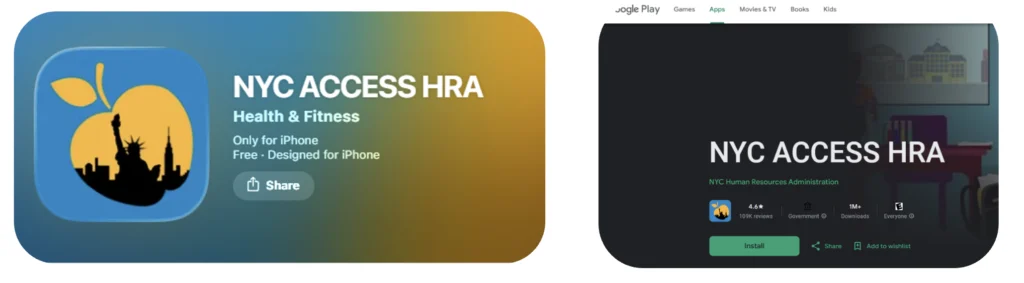
1. Search for the “ACCESS HRA Mobile App” in either the Apple App Store or Google Play Store
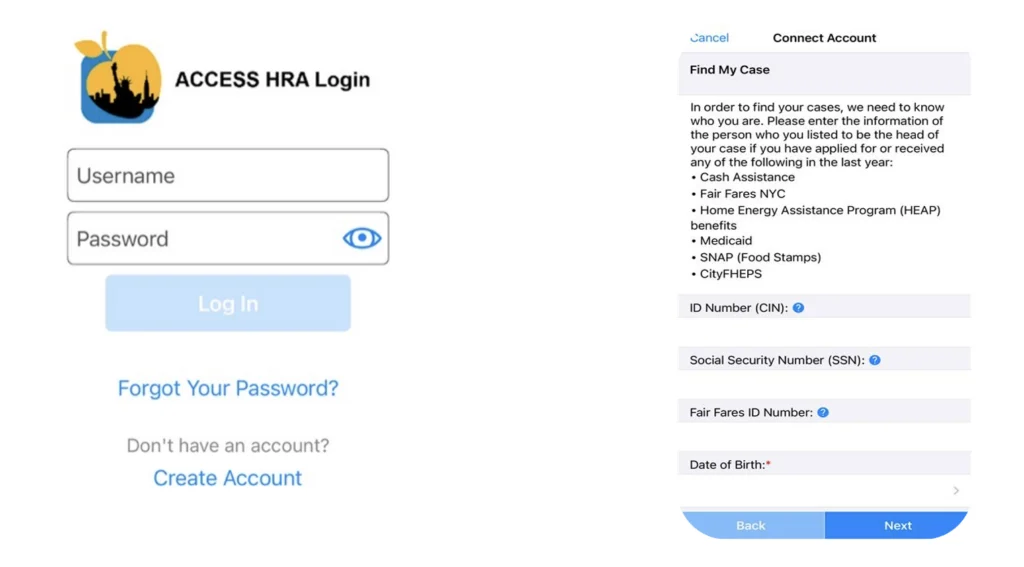
2. Login with the same username and password that you created to apply for SNAP.
a. If necessary, use the “Find Your Case” function to connect the mobile app to your case.
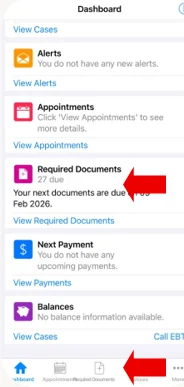
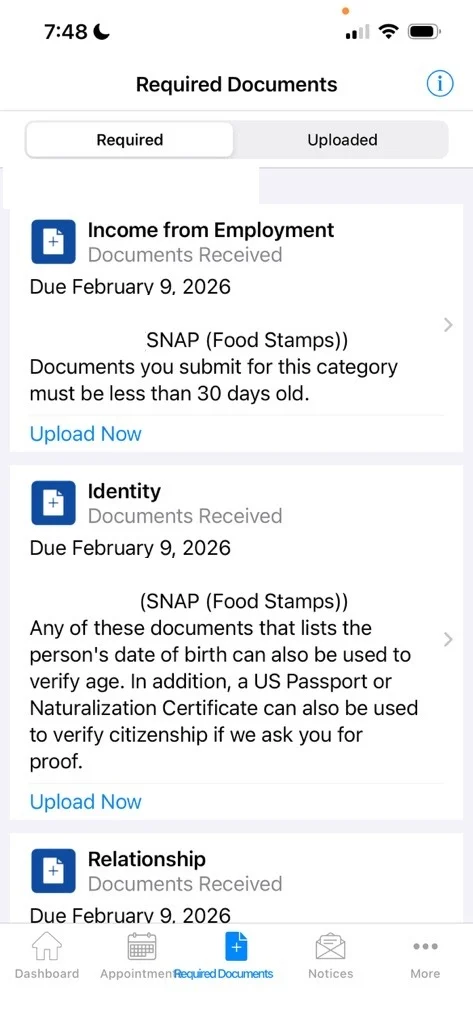
3. Once logged in, scroll through the app until you get to the “Required Documents” section. Tap on it to bring up a list of the documents you need to provide to HRA.
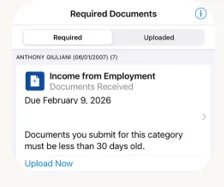
4. Tap on the Upload Now button under a required document (which will be in yellow) or a document you’ve already submitted (in blue) if you’d like to replace it.
5. You’ll be prompted to accept a disclaimer, and then select the document you’re trying to upload. Once that’s done, you’ll have the choice to take a photo of the document you’re trying to submit OR upload it from your mobile device’s gallery.
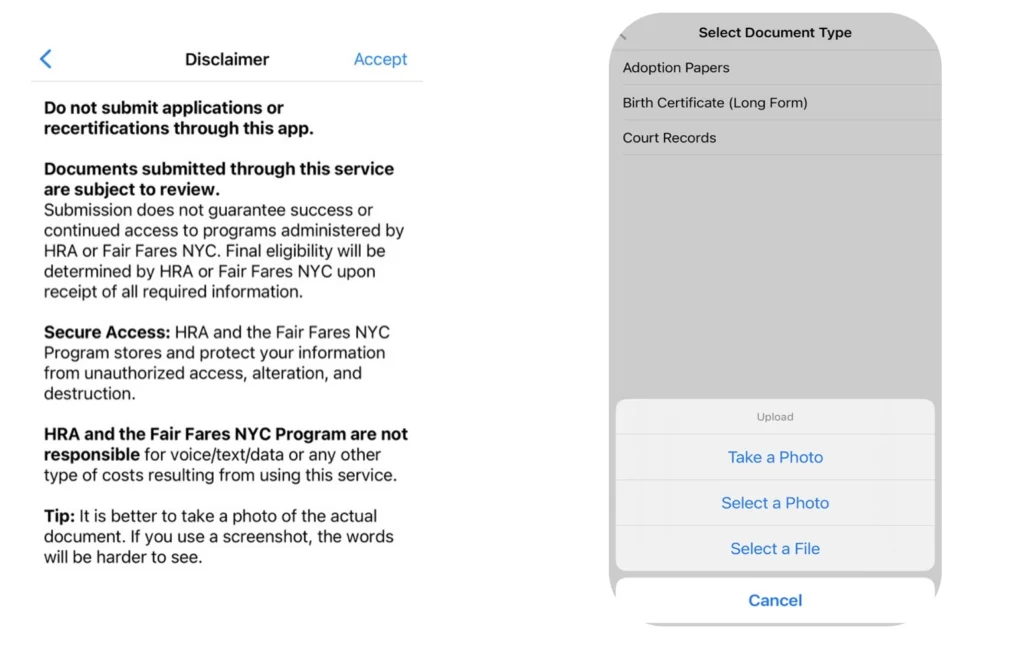
6. The app will show a progress bar and once the image is successfully uploaded, you’ll be taken back to the Required Document List. If all the documents in the list have a blue indicator next to them, congratulations! Your documents are all uploaded!
Additional Resources
Share with your network!
SNAP Call Center
Phone: (212) 894-8060 | Monday – Friday: 9 AM – 4:30 PM | Languages: English and Spanish | Email: snap@foodbanknyc.org